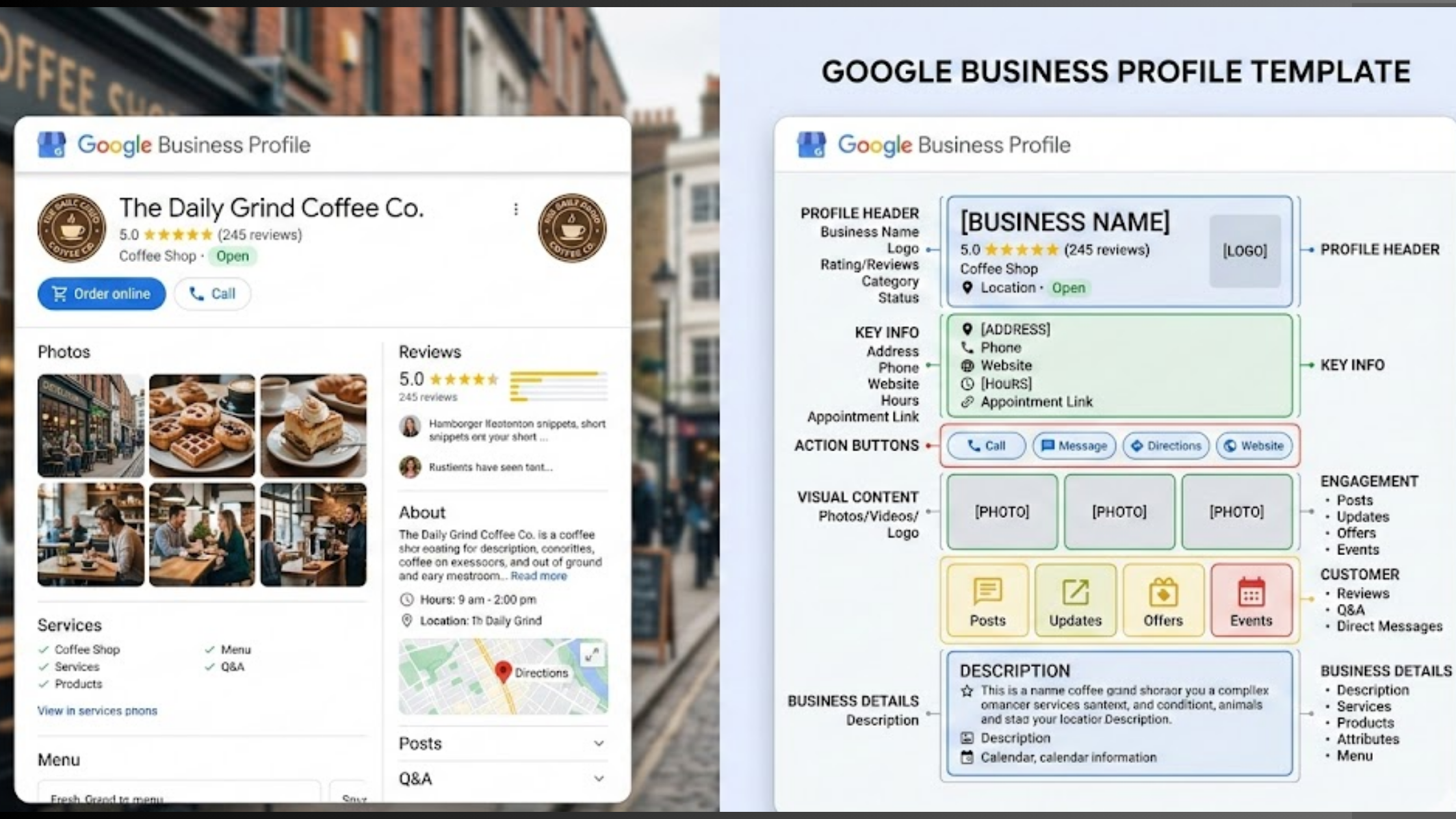
If you have a local business, your Google Business Profile is probably the first thing people see when they search for you. It shows up right in Google Search and on Maps.
And the first thing people notice on that profile? Your logo.
It sits right next to your business name and reviews. It tells people who you are before they even read a single word.
But if your logo is blurry, pixelated, or gets cropped weirdly, it makes your business look careless.
We do not want that.
Getting your logo right is simple once you know the rules. In this guide, you’ll know the exact size you need, how to upload it correctly, and a few tips to make sure it looks sharp on every device.
What Size Should My Google Business Logo Be?
We will get right into it. You want to know the numbers so you can get this done without any guesswork.
In 2026, Google has settled on clear specifications to ensure profiles look crisp on all devices, from desktop computers to mobile phones.
For your logo, the ideal size is 720 x 720 pixels. This creates a perfect square, which is the format Google uses to display your logo in search results and on maps.
Some of the technical requirements you need to follow:
- Recommended Size: 720 x 720 pixels.
- Minimum Size: 250 x 250 pixels. You should avoid going this small, as it might look blurry on high-resolution screens.
- Aspect Ratio: 1:1, a perfect square.
- File Formats: JPG or PNG. PNG is usually the best choice if your logo has a transparent background, as it keeps the edges clean.
- File Size: Keep it between 10 KB and 5 MB.

Why is the square format so important?
Google displays your logo in a circular crop in many places, like next to your reviews or in the search results snippet.
If you upload a rectangular image, Google will force it into a square and then crop it to a circle. This can cut off parts of your logo or make it look tiny.
By starting with a square, you have control over what appears inside that circle.
To keep things simple, remember that your logo, cover photo, and the images you use for posts all have different jobs and different sizes.
While your logo is 720×720, your cover photo, the big banner image, should be 1024 x 576 pixels (a 16:9 widescreen format).
And if you are creating posts or offers, the best size for those images is 1200 x 900 pixels (a 4:3 ratio).
Keeping these straight will ensure your whole profile looks polished.
How to Upload My Google Business Logo Correctly
Uploading your logo sounds simple, but doing it correctly ensures that Google recognizes it as your official brand image and not just another random photo.
This is a step-by-step guide to get it done right:
Step 1: Sign In and Access Your Profile

First, you need to sign in to Google with the email address that is the owner or manager of your Business Profile. If you manage multiple businesses, make sure the correct one is selected.
Step 2: Go to the Logo Section

Once you are on your profile dashboard, look for the option to edit your profile. The exact wording might vary, but you are generally looking for a button labeled “Edit profile”.
From there, find the photos section.
Inside the Photos area, you will see different categories for your images, such as interior, exterior, team, and, crucially, logo. Click on the Logo category.
This is important. Do not just upload your logo to the general photos. Placing it in the “Logo” category tells Google that it is the image representing your brand.
Step 3: Upload Your Image

Click the blue pencil icon or the select image button to upload your file from your computer. Select the 720×720 pixel image you have prepared.
Step 4: Wait for Approval
After you upload the image, it will not appear instantly. Google reviews photos to ensure they meet their quality guidelines.
You do not need to do anything during this time; just wait for it to go live.
Troubleshooting Common Upload Problems
Sometimes things don’t go as planned. You may have a few common issues, and this is how to fix them:
File Size Too Large: If your file is over 5 MB, Google will reject it. You can use a free online tool to compress the image without losing too much quality.
Blurry or Pixelated Logo: This usually means your image was too small. If you uploaded a tiny 100×100 pixel logo and tried to stretch it, it would look bad. Go back to your design software and export a new file at the correct 720×720 size.
Can’t Find the Logo Category: Make sure you have owner or admin permissions. Some users have permission to view the profile but not to edit it. If that is the case, you will need to contact the profile owner to upgrade your access.
Google Business Logo Best Practices
Getting the size right is step one. Now you need to make sure your logo looks good and does its job.
a) Keep It Simple
Your logo will mostly be seen on a small phone screen. If your design has tiny text or very thin lines, people won’t be able to read it.
It will just look like a blur. Use a logo that is easy to recognize, even when it is small.
b) Use a Clean Background
Google places your logo on a white background. If your logo is white as well, it will disappear. You need contrast.
A dark logo on a white background works perfectly. If your logo is light, add a soft border or a colored background to your square image to make it stand out.
c) Focus on the Center
Google crops your square logo into a circle in many places on the search page. This means the four corners of your image will be cut off.
Keep all the important parts of your logo, like your business name and icon, in the very middle. Leave some empty space around the edges so nothing gets chopped off.
d) Keep It the Same Everywhere
Use the exact same logo on Google, your website, and your Facebook page. When customers see the same image everywhere, they trust you more.
If your logo looks different on each site, people might get confused and think they found the wrong business. You want to look like one, consistent brand.
Optimizing Your Google Business Profile in 2026
We’ve seen how your logo is a key part of your profile, but it is only one piece of the puzzle. To win in local search, you need a full strategy.
Google decides which results appear in the top three local results based on three factors: Relevance, Distance, and Prominence.
To optimize,
- Keep info accurate. Make sure your name, address, phone, and categories are correct. Match your website exactly. Fill out all attributes, such as Free Wi-Fi or Outdoor seating.
- Add photos and videos. Profiles with visuals get more clicks. Show your storefront, team, and products. Short videos help build trust.
- Manage reviews. Ask customers for reviews. Reply to every single one. Thank people for praise and offer to fix problems when feedback is negative.
- Post weekly. Share events, offers, or news. It keeps your profile active and gives people a reason to choose you.

Optimizing a Google Business Profile and managing your business can be hard. However, this need not be the case.
Our Localforce tool automates your Google profile so you show up in more local searches.
Localforce can post for you every week, suggest review replies, and track your rankings. We focus on getting you more calls, bookings, and visits.
Start for free or try our Growth plan to automate everything. Simple pricing per location. Cancel anytime.
Final Take
You now have everything you need to get your logo right. You know the exact size, how to upload it, and the common mistakes to avoid.
But remember, your logo is just the start. To really win in local search, your whole profile needs attention.
You need accurate info, fresh photos, regular posts, and active review management. That is a lot to keep up with.
Localforce is built to handle all of that for you. We automate your Google Business Profile so you can focus on running your business.
We post for you, help with reviews, and track your rankings. Our goal is simple: get you more calls, bookings, and visits.
You can start with a free plan to check your profile health today.