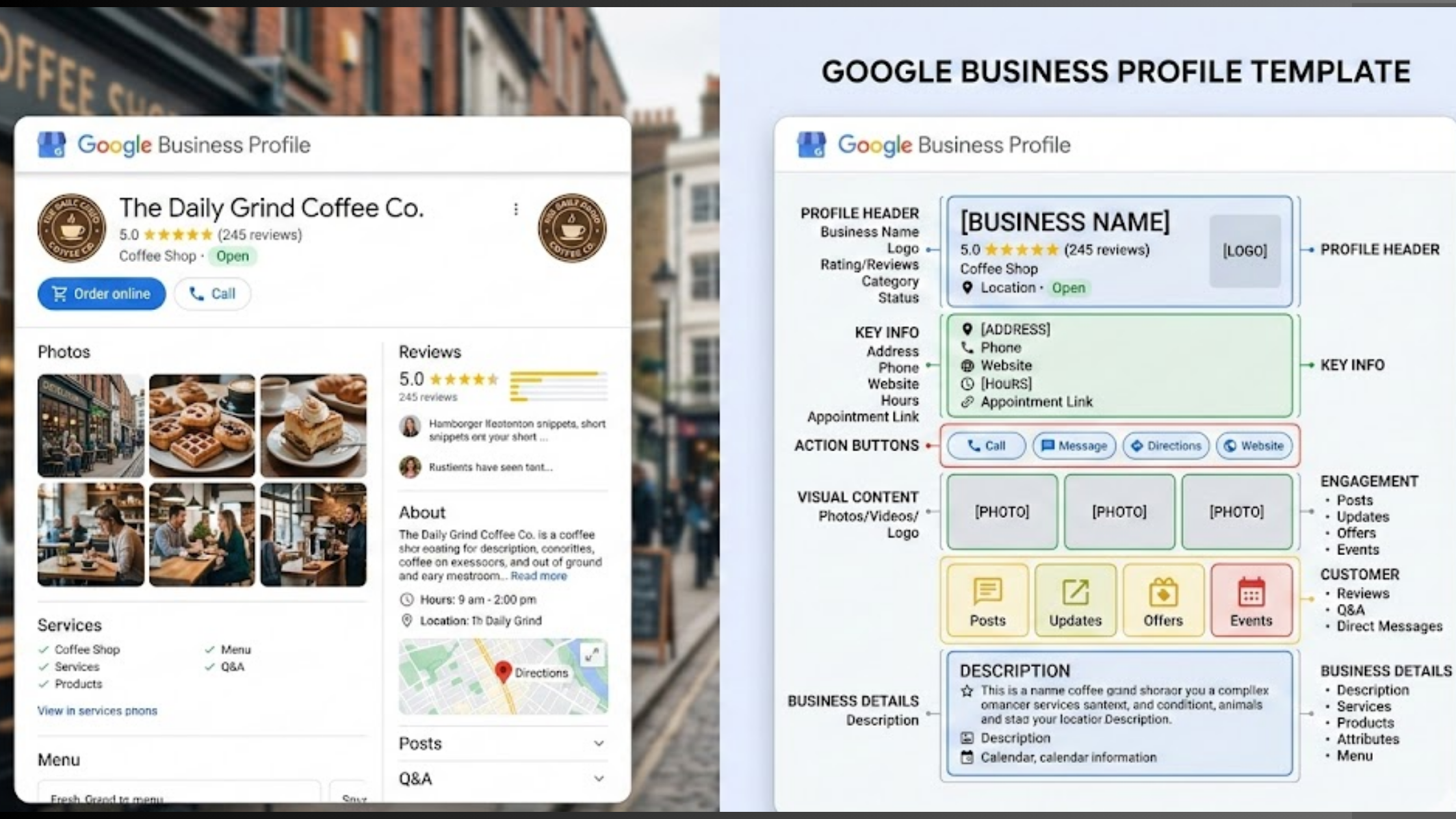
You see how some local businesses seem to own the map pack while yours is stuck playing hide-and-seek? Why not find competitors for Google Business listings and figure out what they’re doing differently?
We can be “cool,” but I know deep down it’s frustrating to see another business dominate the Map Pack while you know you offer just as much, if not more.
Here’s the thing though: ranking on Google Maps isn’t always about reviews or pretty photos.
One of the most overlooked and underestimated factors is your Google Business Profile category. That small dropdown selection could be the big reason you’re not in the pack yet.
It’s the part that tells Google what your business is about and whether you deserve to show up when customers search.
Now your competitor down the street could be appearing for searches you should be ranking for, simply because they chose a slightly different primary category… or added secondary ones you didn’t even consider.
In this guide, we’re going to break down exactly how to find your competitor’s Google Business Profile categories, analyze what they’re doing right, and use that insight to gain a real edge.
Note that we won’t be just copying blindly, but instead, we’ll be positioning your business smarter.
Let’s get into it and help you close that gap.
Why Use Competitor Google Business Profile Categories?
That box of three businesses at the top of Google Maps results, called the Local Pack, is where the real action happens.
It’s often the difference between a quiet day and a phone that won’t stop ringing.
And one of the biggest factors behind who shows up there is the primary category selected in a Google Business Profile.

According to the 2026 Local Search Ranking Factors survey, it’s the single most influential ranking signal for the Local Pack. Secondary categories matter too, but they rank as the 8th most powerful factor.
So this isn’t a minor setting buried in your profile. It carries serious weight.
Businesses that choose the right combination of categories, especially adding four well-chosen secondary ones, have been shown to move from page two to an average position of 5.9 in local rankings.
And that’s based on real performance data.
Now consider this: the Local Pack appears in 93% of searches with local intent and captures around 44% of all clicks.
Nearly half the potential customers searching for services in your area are clicking those top three listings. If your competitors have a stronger category setup, they’re getting those calls instead of you.
And the rest of the group has to share in the other half.
So, checking which categories they use is one of the fastest ways to level the playing field. The idea is to learn what Google is already rewarding and spot gaps they haven’t covered yet.
Step-by-Step: How to Manually Find Competitors for Google Business Categories
You can find competitors for Google Business categories in under two minutes using nothing more than Google Maps and your browser.
This is exactly what to do:
Step 1: Open Google Maps on your computer and search for your main service plus your city. For example, type “plumber New Jersey” or “HVAC Lagos.”
Step 2: Click on one of the top-ranking competitors to open their full listing.
Step 3: Look just below the business name to find their primary category.
Step 4: Right-click anywhere on the page and select “View Page Source.”
(Shortcut: Press Ctrl + U on Windows or Cmd + Option + U on Mac.)

Step 5: Once the page source opens in a new tab, press Ctrl + F (Windows) or Cmd + F (Mac) to open the search box.
Step 6: Type in the exact primary category you saw on their profile, such as “Plumber” or “Heating Contractor.”
Step 7: Scroll through the highlighted sections in the code. You’ll see their full list of categories there, including every secondary category Google uses to match them to searches.
That’s it, you just found your competitors’ categories.
Repeat this for the top 3–5 competitors in your area and record everything. You’ll start to notice patterns: the core categories most businesses use and the extra secondary ones that help the strongest listings stand out.
Pro tip: Keep a simple note. Write the primary category at the top, then list the secondary categories underneath. You’ll use this list in the next steps to fine-tune your own profile.
Best Free and Paid Tools to Find Competitors for Google Business Profile Categories Faster
Manually checking page source works, but let’s be honest, it’s not something you want to do all day.
If you’d rather see everything instantly while browsing Google Maps, a couple of Chrome extensions make the job much easier.
1. GMB Everywhere (free basic version) – Install the extension, open Google Maps, and start searching.
Each listing will display its primary and secondary categories right on the screen, along with a quick audit score. It’s one of the fastest ways to review competitor setups while you browse.
2. PlePer Local SEO Tools (Chrome extension) – This is another solid free option.
Click on any Maps result, and it pulls categories, reviews, attributes, and even the Place ID in one view. If you’re checking 10 or more competitors in one session, this saves serious time.
Both tools work directly inside Google Maps, so there’s no extra dashboard to log into.
Paid upgrades offer deeper audits and extra data, but the free versions are more than enough to find competitors for Google Business categories and start refining your own profile right away.
Turning Insights Into Action: Optimize Your Own GBP Categories Like a Pro
Collecting competitor categories is step one. Step two is putting that information to work.
This is how you do it properly:
1. First, log into your Google Business Profile.
2. Next, go to Edit profile, Business information, and then Categories.
3. Set your primary category to the most specific option that truly describes your main service.
If there’s a tighter match available than what competitors are using, choose the more precise one. Specific categories often perform better than broad ones.
4. Then, add up to nine secondary categories. Select the ones your top competitors are using, as long as they genuinely reflect services you provide.

5. After that, update your Services section so it aligns with those categories. Google treats services as supporting signals, so matching them strengthens your relevance.
This simple adjustment can help you appear in more searches without touching your website, reviews, or anything else.
One important rule: don’t add categories that don’t apply to your business. Irrelevant categories can lead to suspensions. Stick to services you actually offer, and you’ll build visibility the right way while steadily improving your rankings.
How Localforce Automates Competitor Analysis and Wins You the Edge
Doing this once is great, but doing it every month (because competitors change categories) is painful.
That’s exactly why we built Localforce.
With one click, Localforce scans every competitor in your area, pulls their exact primary and secondary categories, compares them to yours, and shows you the gaps you can fill today.
It even suggests the perfect category mix based on what’s working right now in your city.
But we didn’t stop there. Localforce also handles the following:
- Daily GBP audits and ranking alerts
- AI-written posts and offers that actually get engagement
- Smart review replies that turn 1-star into 5-star loyalty
- One-click listing management across Google, Bing, Apple Maps and more
Hundreds of plumbers, electricians, and salon owners using Olitt AI already have Localforce running in the background, saving them 10+ hours a month while their Map Pack positions climb.
I should know better since I just got mine.

Now if you want to make everything GBP automatic, the first best decision will be to try the free LocalForce plan, see how it works, and then decide from there.
Make sure you have an Olitt website and log straight into your dashboard once you have your plan to start enjoying your new features.
Conclusion
You now know exactly how to find competitors for Google Business Profile categories, why those categories carry so much weight, and how to use that information to improve your own rankings.
The manual method works, and it’s free.
And if you apply it consistently, you’ll start spotting opportunities your competitors missed.
But the smarter long-term move is automation, so you can focus on serving customers instead of constantly checking what others are doing.
Luckily enough, LocalForce is here to handle that heavy lifting for you.
Instead of watching competitors dominate the map pack, you can start closing the gap and then move ahead.
Your phone and your customers are waiting. Let’s go get them.