You can have the best service in town…
But if people can’t find you on Google, it’s almost like your business doesn’t exist.
That’s the hard truth.
When someone searches ‘plumber near me’, ‘salon open now’, or ‘best café around here’, they’re not scrolling endlessly.
They’re choosing from the businesses that show up first with photos, reviews, directions, and a big Call button staring back at them.
And that visibility comes from having to creat Google Business Profile.
By the time you’re done reading, you’ll know exactly how to create Google Business Profile from scratch, set it up the right way, and avoid the mistakes that quietly hurt your visibility.
Here’s what we’ll walk through together:
- What a Google Business Profile is (and why it is important in 2026)
- What you need before creating your profile
- A step-by-step walkthrough to create your Google Business Profile
- How to optimize it so customers actually call, visit, or book
- Common mistakes that get profiles suspended or ignored
Let’s get your business in front of the people already searching for what you offer.
What Is a Google Business Profile?
A Google Business Profile is what puts your business on the map, literally.

It’s the box you see when you search for a business name or a service on Google.
The one with photos, reviews, opening hours, directions, and a Call button that makes it ridiculously easy for customers to reach out.
In simple terms, it’s your digital storefront.
Even if you don’t have a website yet, a Google Business Profile allows people to:
- Find your business in local search results
- See what you offer before contacting you
- Trust you based on reviews and photos
- Get directions or call you in one tap
And here’s the part most people miss…
You don’t need to pay for ads to appear there.
Once you create a Google Business Profile, Google uses the information you provide to decide when and where to show your business to nearby searchers.
That’s why two similar businesses can exist in the same area, yet only one keeps getting calls.
One took the time to set up their profile properly.
The other didn’t.
Your profile includes things like:
- Your business name and category
- Address or service area
- Phone number and website
- Business hours
- Photos, services, and reviews
All of this works together to answer one simple question Google keeps asking:
‘Is this business relevant and trustworthy enough to show right now?’
The better your profile, the more often the answer is yes.
How Google Business Profile Shows Up in Search and Maps
When someone searches for a service near them, Google doesn’t send them on a long scavenger hunt.
It shows answers immediately.
That’s where your Google Business Profile steps in.
After you create a Google Business Profile, it can appear in three powerful places at once:
1) The Local Search Results (The “Map Pack”)
This is the group of businesses you see at the very top of the page usually three listings, a small map, and quick business details.

These listings show up before regular websites.
That means your profile can outrank businesses with expensive websites, simply because Google sees your listing as more relevant to that local search.
Each result usually displays:
- Business name
- Star rating and number of reviews
- Business category
- Distance from the searcher
If you’re not here, you’re invisible to ready-to-buy customers.
2) Google Maps Results
Open Google Maps, search for a service, and you’ll see pins scattered across the area.

Those pins?
They’re Google Business Profiles.
When your profile is set up correctly, your business shows up when people:
- Search for services while driving
- Look for nearby businesses on their phones
- Need directions right now
For physical stores, this is gold.
For service-area businesses, it’s how customers in your location discover you.
3) Your Branded Business Panel
Search for your business name, and a full panel appears on the right-hand side (or at the top on mobile).
This panel includes:
- Photos
- Reviews
- Business hours
- Directions
- Call and message buttons
It’s often the first impression people get of your brand even before they visit your website or social pages.
Why This Placement Is Important
People using Google Search or Maps usually aren’t browsing.
They’re deciding.
They want a solution nearby, and they want it fast. Showing up in these spots puts your business directly in front of customers who are ready to call, visit, or book.
And the best part?
All of this visibility starts the moment you create a Google Business Profile and optimize it the right way.
If your goal is to show up in that top section with the map and three listings, there’s more strategy involved than just setting up a profile.
We break it down step by step in our detailed guide on How to Rank in Google 3 Pack.
Here you’ll learn what actually moves the needle from categories and reviews to proximity and optimization signals.
Key Benefits of a Google Business Profile
Creating a Google Business Profile isn’t just about ‘being online.’
It’s about being chosen.
When someone is searching and comparing options, your profile does a lot of the convincing before they ever call you. Here’s how.
1) More Visibility
Most local customers don’t scroll.
They scan, decide, and act.
Once you create a Google Business Profile, your business becomes eligible to appear in front of people who are:
- Actively searching for your service
- Located near your business or service area
- Ready to call, visit, or book
This isn’t passive exposure like social media.
This is high-intent visibility on Google, the exact moment someone needs what you offer.
2) Reviews That Build Instant Trust
Reviews are today’s word of mouth.
Before contacting a business, most people check:
- Star rating
- Number of reviews
- Recent feedback
A well-optimized profile makes it easy for happy customers to leave reviews, and those reviews work like social proof on autopilot.
A business with consistent reviews feels:
- More established
- More trustworthy
- Safer to choose
Even if you’re newer than your competitors.
3) Direct Customer Actions (Calls, Directions, Messages)
Your Google Business Profile removes friction.
Instead of forcing people to:
- Visit a website
- Search for contact details
- Fill out long forms
They can simply:
- Tap to call
- Get directions instantly
- Message you directly
Less effort for them means more leads for you.
4) Insights You Can Actually Use
Google doesn’t just show your business it also shows how people interact with it.
From your profile dashboard, you can see:
- How customers found you
- What search terms did they used
- How many people called or asked for directions
- Which photos get the most views
This data helps you understand what’s working, what’s not, and where to improve without paying for expensive analytics tools.
5) A Strong First Impression (Before Your Website)
For many customers, your Google Business Profile is your first impression.
Photos, reviews, business hours, and your description all work together to answer one question fast:
‘Can I trust this business?’
When your profile looks complete and active, that answer becomes obvious.
Prerequisites Before You Start
Before you jump in and create a Google Business Profile, pause for a minute.
A little prep now will save you from restarting the process, getting stuck in verification, or choosing the wrong setup for your business.
Here’s what you need ready.
Google Account Requirements
You’ll need a Google account to create and manage your business profile.
If you already use Gmail, YouTube, or Google Drive, you’re good to go. Just make sure:
- You have access to the account long-term
- It’s not shared with too many people
- It’s tied to your business, not a former employee
This account becomes the control room for your profile, from updates to reviews and insights.
Business Information You’ll Need Ready
Google moves fast, and it expects answers.
Before starting, have these details written down or saved somewhere:
- Official business name (no extra keywords)
- Primary business category
- Phone number customers can reach you on
- Website URL (if you have one)
- Physical address or service area
- Business hours
Stopping mid-way to ‘figure things out’ often leads to mistakes or abandoned profiles.
Service-Area vs. Storefront: Which One Should You Choose?
This is where many people get confused.
Your choice here affects how and where your business appears on Google.
Choose a Storefront If:
- Customers visit your location
- You have signage and fixed opening hours
- You want your address visible on Maps
Examples: cafés, salons, retail shops, clinics.
Choose a Service-Area Business If:
- You travel to customers
- You work from home and don’t want your address public
- You serve specific cities or regions
Examples: plumbers, cleaners, electricians, mobile services.
You can’t be both.
Picking the wrong option can lead to:
- Address visibility issues
- Suspensions during verification
- Lower trust from customers
Step-by-Step: Creating Your Google Business Profile
This is the exact process Google walks you through when you create a Google Business Profile.
No shortcuts.
No guesswork.
Just clean, simple steps you can follow in one sitting.
Step 1: Go to business.google.com
Open your browser and head to business.google.com.

Make sure you’re signed into the Google account you want to use to manage your business. This account will control everything: edits, reviews, messages, and insights, so choose wisely.
Once you’re in, click the button to add your business.
This is the official starting point. Anything outside this page is not legit.
Step 2: Enter Your Business Name
Type in your real, official business name.

No extra keywords.
No location stuffing.
No slogans.
If your business already exists in Google’s system, you may see it pop up. If that’s yours, select it. If not, continue and create a new listing.

Adding unnecessary words here might seem clever, but it’s one of the fastest ways to get suspended later.
Step 3: Choose Your Business Category
This is one of the most important steps in the entire setup.

Your primary category tells Google what your business actually does and which searches you should appear for.
Choose the category that best describes your main service, not everything you offer.
You’ll be able to add more categories later, so focus on accuracy, not coverage.
A wrong category = wrong traffic.
Step 4: Add Your Location or Service Area
Here’s where your earlier decision comes into play.

- If customers visit your location, enter your physical address
- If you go to customers, hide your address and set a service area
If you’re a service-area business, you’ll choose the cities, regions, or distance you cover.

Be honest here. Overstating your reach doesn’t help it usually hurts visibility.
Step 5: Add Contact Info and Website
Now it’s time to tell customers how to reach you.

You’ll be asked to add:
- A phone number
- A website URL (optional, but highly recommended)
Use details that are active and monitored. Missed calls or broken links send the wrong signals both to customers and to Google.
This is also where your profile starts becoming actionable, not just visible.
Step 6: Verify Your Business (Overview of Methods)
Before your profile goes live, Google needs to confirm you’re a real business.

Verification methods vary, but commonly include:
- Postcard with a code
- Phone or text verification
- Email verification
- Video verification
The option you see depends on your business type, location, and history.
If you manage multiple locations or want to simplify verification, Olitt Localforce can help guide you through the setup and verification process, ensuring each profile is correct and compliant.
Once verified, you’ll gain full control over your profile and its visibility in Search and Maps.
See also: Why Your Business Is Not Showing in Map Pack
Optimizing Your Profile After Creation
Creating a Google Business Profile is like planting a tree.
If you leave it alone, it might grow… but it won’t flourish.

Optimization is the sunlight, water, and care that turns it into a magnet for customers.
Here’s how to make your profile stand out and actually drive business.
Writing a Keyword-Rich Business Description
Your description is your chance to talk directly to your customers.
- Use short, clear sentences
- Highlight what makes your business special
- Naturally include keywords like “create Google Business Profile” if relevant
Example:
‘We help local businesses create Google Business Profiles that attract more customers and increase visibility on Search and Maps.’
Keep it human, not robotic. Pretend you’re explaining your business to a friend who’s asking, ‘Why should I choose you?’
Uploading Photos and Your Logo
Photos grab attention more than words ever will.
- Logo: your brand’s signature
- Interior & exterior shots: help people recognize you
- Product/service photos: show what you actually offer
- Team photos: add trust and personality
Tip: Use high-quality images, but don’t overthink perfection. Authenticity often wins over staged stock images.
Setting Business Hours and Special Hours
Nothing frustrates customers faster than showing up when you’re closed.

- Regular hours: make them accurate
- Special hours: holidays, events, or seasonal changes
Google even lets you set temporary closures, so your profile is always up to date.
Adding Products, Services, and Attributes
Make it easy for customers to see exactly what you offer:
- Services: list them clearly
- Products: if applicable, show your bestsellers
- Attributes: ‘Wheelchair accessible,’ ‘Outdoor seating,’ or ‘Free Wi-Fi’
This information improves visibility in relevant searches and makes your profile more clickable.
Add a Booking Link to Your Profile
If you accept appointments, reservations, or consultations, don’t make people call you manually.
Adding a booking link lets customers schedule instantly right from your profile.
- More convenience = more conversions
- Reduces friction between interest and action
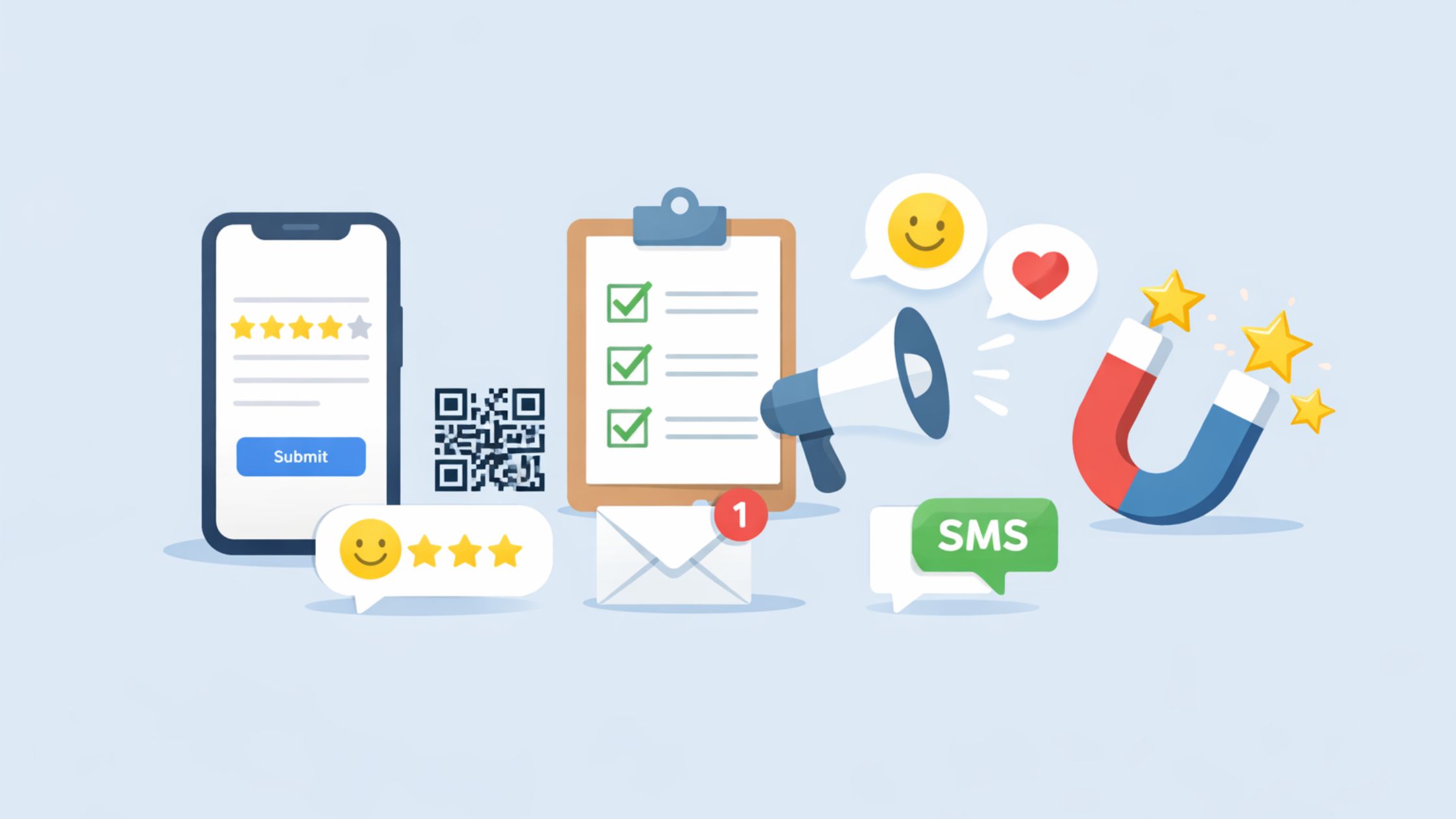
Request Your First Review
Reviews are the social proof that seals the deal.
- Ask happy customers politely to leave a review
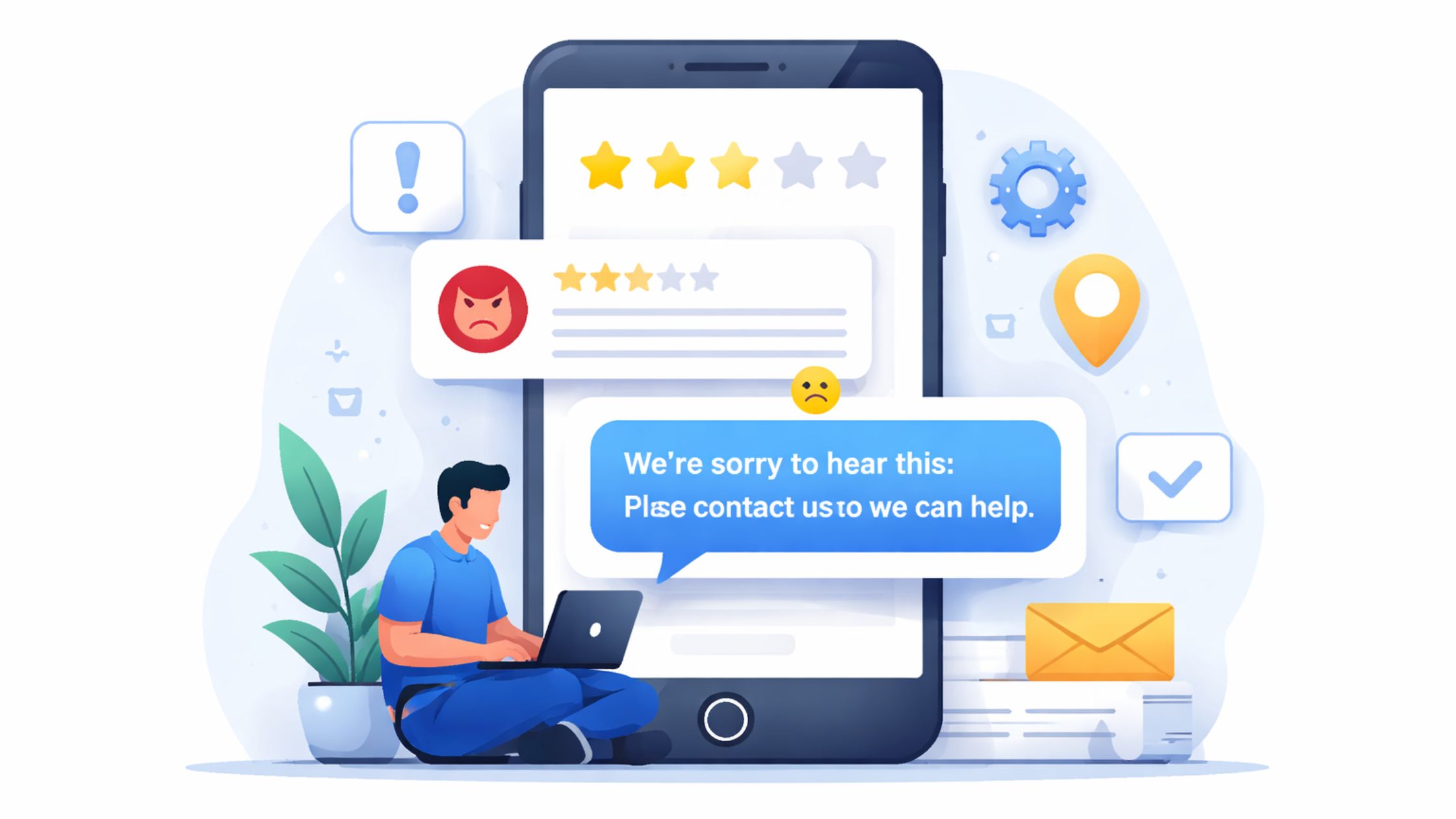
- Respond to reviews professionally, thanking them or addressing concerns
- Early reviews build trust fast and improve local ranking
Even one or two genuine reviews make a difference.
Tools like Olitt Localforce make managing reviews, posts, and updates across your profile easy so your profile stays active, optimized, and visible without the guesswork.
Common Mistakes to Avoid When Creating a Google Business Profile
Even small mistakes can quietly destroy the benefits of a Google Business Profile.
These are the ones that trip up business owners most often:
1) Keyword Stuffing Your Business Name
Adding extra keywords or locations to your business name might seem smart for SEO, but Google sees it as spam.
Correct: ‘Bright Star Café’
Incorrect: ‘Bright Star Café Best Coffee Downtown Nairobi’
Keep it clean, accurate, and professional.
2) Choosing the Wrong Category
Your primary category tells Google what your business actually does.
Pick the wrong one, and you’ll appear for searches that aren’t relevant or, worse, not appear at all.
- Focus on your main service
- Add secondary categories if needed, but don’t overdo it
3) Using a Home Address Incorrectly
If you serve customers at their location, don’t publicly display your home address.
It can confuse Google and customers, and may even cause suspension during verification.
- Use a service area instead
- Only show your address if customers visit you physically
4) Ignoring Photos and Reviews
Profiles without photos or reviews look inactive and untrustworthy.
- Upload at least a few high-quality photos
- Encourage happy customers to leave reviews
- Respond to every review politely
5) Creating Duplicate Listings
Multiple profiles for the same business can confuse customers and Google alike.
It splits reviews, reduces credibility, and may hurt your ranking.
- Always check if a profile already exists before creating a new one
- Merge or claim existing listings instead of duplicating
See also: How to Track Google Maps Rankings
What to Do With Multi-Location Businesses
If your business has more than one location, each location needs its own Google Business Profile.

Here’s why:
- Each profile targets local customers in that specific area
- Reviews and photos are location-specific, building trust in that neighborhood
- You can track insights separately for each branch
But there are a few things to keep in mind:
- Consistency is key: Ensure the business name, categories, and contact info match across all locations
- Avoid duplicates: Never create multiple profiles for the same location
- Central management: Use Google’s business dashboard to manage multiple profiles from one account
Example:
A chain of cafés in Nairobi, Mombasa, and Kisumu should have three profiles, one for each city.
That way, local searchers see the right location and accurate directions, hours, and reviews.
Properly managing multi-location profiles means every branch gets discovered without confusing customers or Google.
See also: GMB Optimization (How to Rank Google Business Profiles Fast)
Conclusion
Creating a Google Business Profile puts your business directly in front of local customers who are ready to call, visit, or book.
By setting it up correctly, choosing the right category, adding accurate contact info, uploading photos, and encouraging reviews, you maximize your visibility and build trust fast.
To make this even easier and manage your profile like a pro, tools like Olitt LocalForce can help you update multiple locations, track insights, and optimize your presence on Google without the hassle.
Start using Olitt LocalForce today and make sure your business doesn’t just exist online, it gets discovered, booked, and loved by customers.