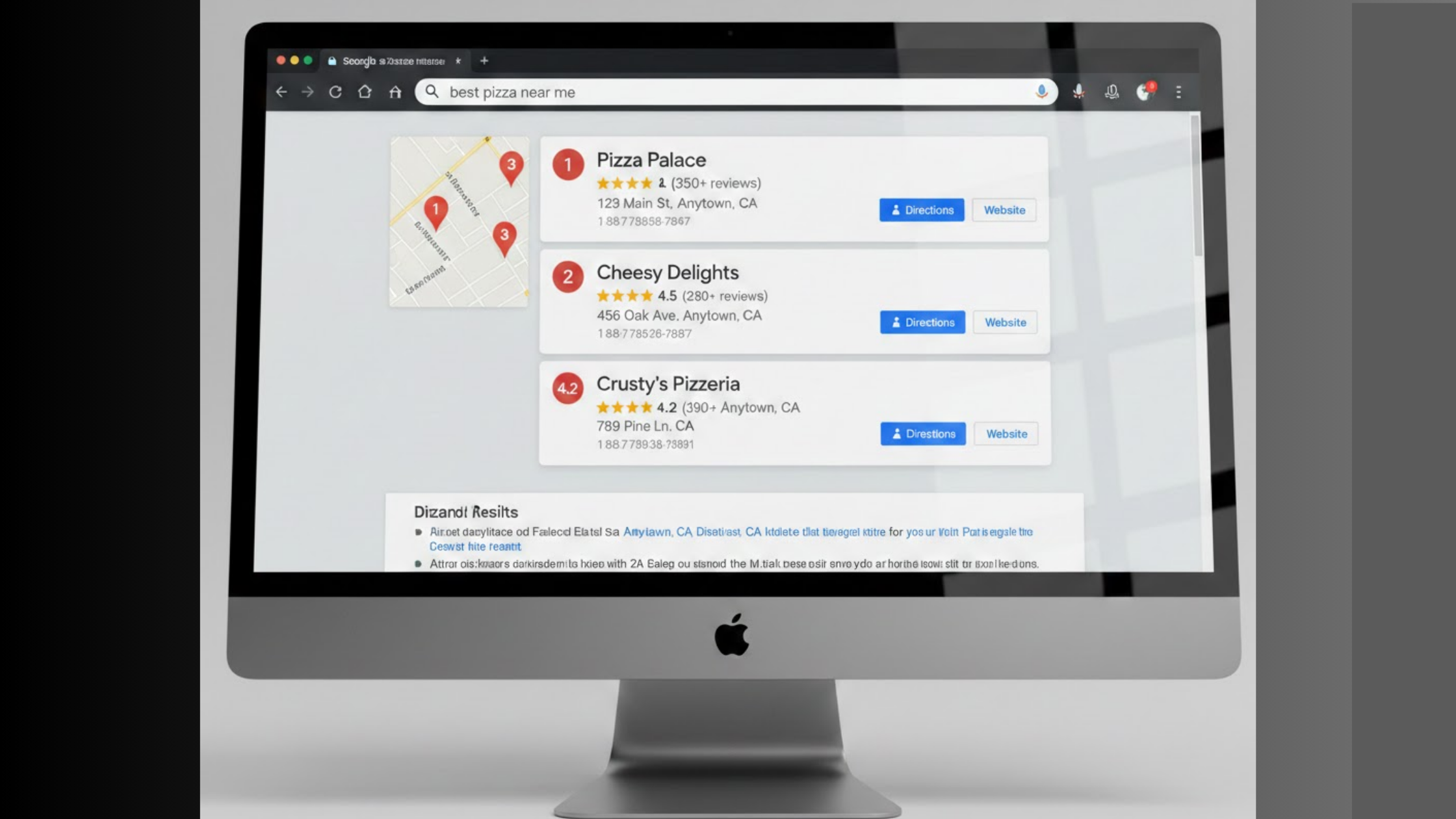
If you run a local business, you already know that getting found on Google is a big deal. You have probably set up your Google Business Profile, added your hours, and asked a few customers for reviews. That is a solid start.
But there is one more step that many business owners miss. You can add social media to Google Business Profiles directly from your dashboard.
It sounds simple, and it is.
But by connecting your Facebook, Instagram, or other social accounts to your Google listing, you’ll not only fill a space but also give people a real look at who you are and how you operate.
By the end of this article, you’ll comfortably add social media to google business profile, step by step, without any struggle.
Why Adding Social Media Profiles on GBP is Critical
When you look for a new restaurant, a plumber, or a hair salon, what do you do? You probably search on Google.
When that list of businesses pops up, you don’t just look at the address. You look at the stars, you glance at the photos, and these days, you want to see their personality.
That’s where your social media comes in.
Adding your social links to your Google Business Profile shows that your business is real, active, and cares about its customers.
A business that posts on Instagram or engages with customers on Facebook feels safer and more reliable than one with no online presence.
There’s also the factor of convenience. Think about how people behave on their phones. They might find you on Google Maps, glance at your profile, and then want to see what your food really looks like, so they click through to your Instagram.
Or they might want to see if you’ve posted any recent updates about a sale on your Facebook page.
If those links aren’t there, they have to do extra work to find you. And honestly, most people won’t bother. They will just move on to the next business on the list.
By having your social media right there on your profile, you keep people on your turf. You make it easy for them to fall in love with your brand.
And when you make things easy for customers, they are far more likely to choose you over a competitor.
Step-by-Step Guide to Add Social Media to Google Business Profiles
Follow these steps carefully, and you’ll be set up in no time.
I recommend doing this on a computer rather than your phone, as it’s easier to see all the fields.
Step 1: Sign in and find your profile.

Go to Google Maps or simply search for my business. Sign in using the email account associated with your business.
Once you are signed in, you should see an option labeled “Manage account,” or you will be taken directly to a dashboard that shows your business profile.
Step 2: Look for the “Edit Profile” button.

Once you are on your business profile screen, you will see a few options. Look for a button labeled edit profile.
It is usually blue or prominently displayed. Click on it. A dropdown menu will appear.
Step 3: Select Contact from the menu.

In the dropdown menu, you will see several options, such as “Business information,” “Hours,” “More,” and “Location.”
You want to click the one labeled “Contact.” This is the section where you manage your phone number, website, and addresses.
Step 4: Find the Social profiles section.

When the “Contact” page opens, you will see fields for your website, phone number, and categories.
Scroll down a little to find a section labeled “Social profiles.” It might also just say “Add social profiles” with icons for different platforms.
Step 5: Add your links.

Click on the “Add social profile” link or the plus sign. A box will pop up asking you to select which platform you want to add (like Facebook, Instagram, X, LinkedIn, TikTok, or YouTube).
Select the one you want, and then paste your full profile URL into the box. Make sure the link works by testing it in another browser tab first.
Step 6: Hit Save.
After you have pasted the link, click “Save” or “Apply.” Do this for each social media account you have.
Once you have added them all, make sure to click the main “Save” button at the top or bottom of the page.
Google will then review the changes, and your social links should appear on your profile shortly.
It really is that simple. Once it’s live, customers will see your social media icons on your profile, usually right next to your website and directions button.
How Social Media Profiles on GBP Boost Local Engagement
So, you’ve added the links. Now what? How does this help you get more business? This is how:
a) It helps nervous customers feel comfortable choosing you.
For instance, someone searching for a hair salon may be cautious. They see your name on Google, but they want to know you’re legit.
When they click your Facebook link right there on your profile, they see real photos, happy customers, and comments from people in town.
That social proof removes the risk. A stranger just became a customer because you made it easy for them to check you out.
b) It shows people you’re still in business.
If a customer clicks over to your Instagram and sees that you posted yesterday, it sends a clear message. You are open. You are active. You care. That simple signal builds more trust than any ad ever could.
c) It connects everything you do.
A customer sees your Google Post about a weekly special. They click your Instagram link to see a real photo of the product. Then they call to place an order.
Your Google profile introduced them to the offer, and your social media closed the deal.
All of this sounds great, but I know what you are thinking. “This is a lot to keep up with.” You are right.
Between running your business and serving customers, finding time to post on Google and reply to reviews is hard.
That is exactly why we built Localforce. We handle that consistent work for you. We keep your profile fresh and active so you continue to show up in local searches.
Final Take
Adding your social media profiles to your Google Business Profile is one of those small tasks that makes a big difference.
It gives customers an easy way to see your personality, builds trust before they even walk through your door, and helps you stand out from competitors who haven’t bothered to do it.
It only takes a few minutes to add those links, but the payoff shows up every time a curious searcher clicks through, likes what they see, and decides to call you.
If you want to take things further and stop worrying about keeping your profile active, let Localforce handle it.
We keep your Google Business Profile fresh with posts, manage your reviews, and help you show up in more local searches.