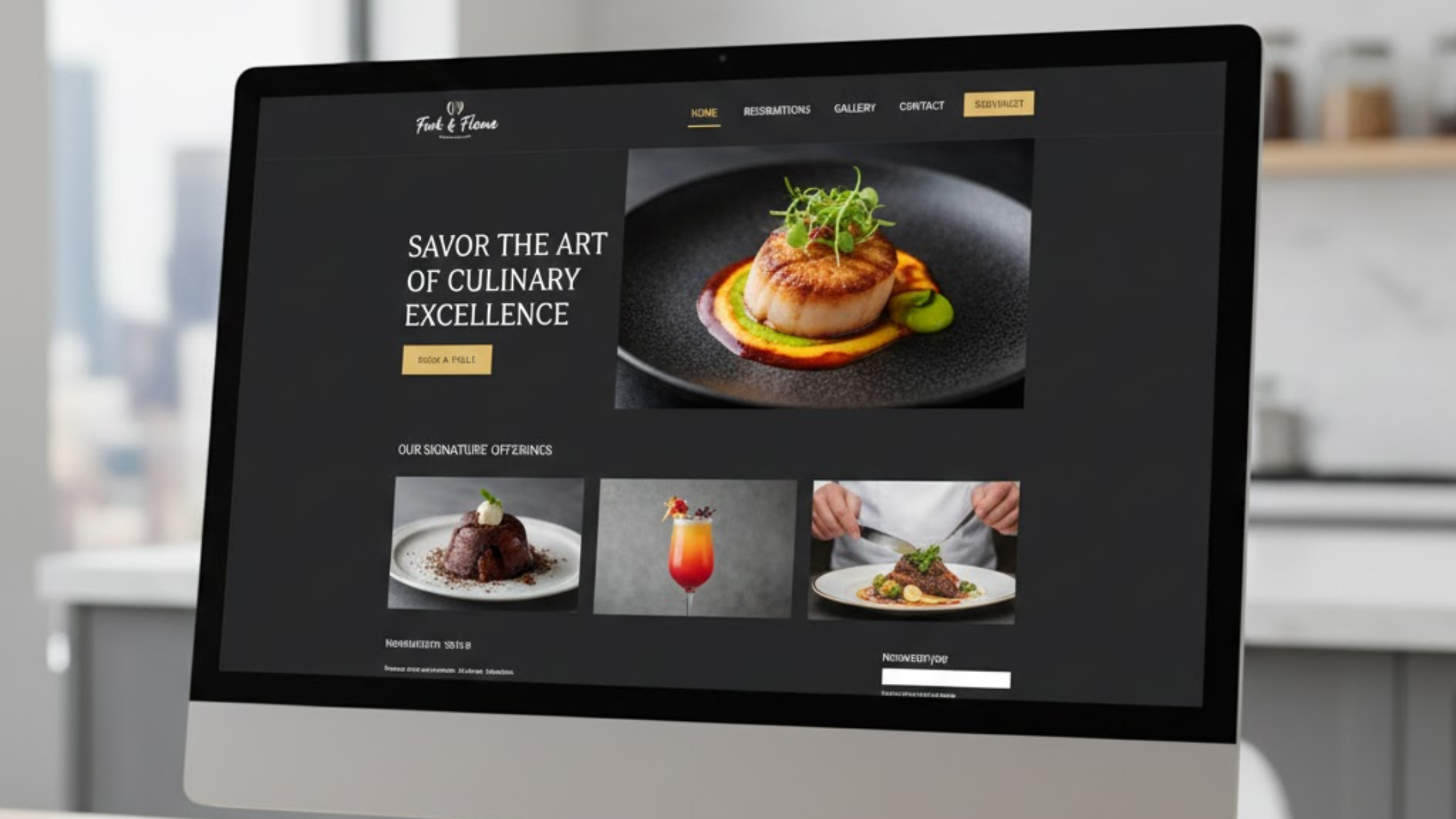
When a potential diner is looking at your restaurant’s website, they like the menu, the photos look great… but they’re still hesitating. What’s the one thing that could push them from “maybe” to “let’s book a table”?
It’s the thoughts of your other customers.
We all check the reviews before we try a new place. But if those glowing five-star comments are stuck only on Google, you’re missing a golden opportunity.
The key to winning over new guests is to bring that social proof directly to them.
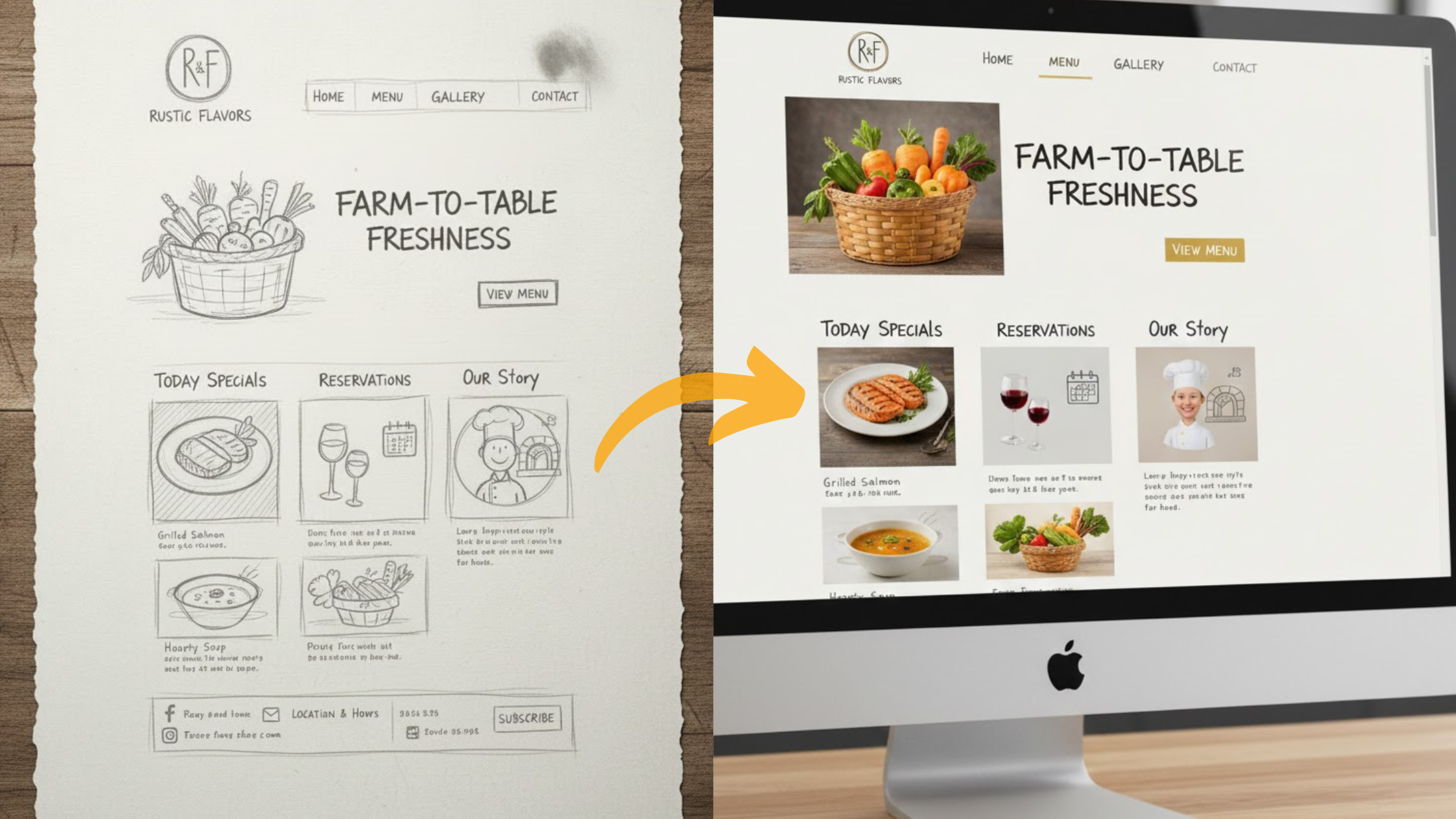
If you are building a new site from scratch or updating an existing one with a tool like Olitt AI restaurant website builder, you can easily add Google reviews that restaurant seekers trust directly onto your pages.
By the end of this guide, you’ll know how to seamlessly showcase your best feedback, build instant trust, and ultimately, fill more tables.
Why Add Google Reviews and Testimonials to Your Restaurant Website

Before we dive into the how, let’s quickly solidify the why. You need Google reviews and testimonials on your restaurant website to:
Builds Instant Trust
People trust other people, not just marketing copy. Authentic reviews are social proof that you deliver on your promises.
Boosts Conversion
Seeing positive feedback can turn a casual browser into a confirmed reservation. Positive feedback might just be the sign that a customer needs to finally order.
Improves Your Local SEO
Adding Google reviews and testimonials can also help you incorporate valuable schema markup into your site, which in turn can improve your appearance in local search results.
Shows Your Strengths
You can choose to feature reviews that mention your famous brunch or your kid-friendly environment, directly supporting your brand message.
Now, let’s get to the why.
How to Add Google Reviews and Testimonials to Your Restaurant Website

There are several ways to add Google reviews to your restaurant websites. One way is manual, and the other requires some tools.
Method 1: The Quick and Manual Approach
This is a great starting point if you’re on a tight budget and want to get something up quickly.
If you want to use the manual method, here’s how to do it:
The Google Maps Embed
Think of this as embedding a mini, interactive version of your Google Maps listing.
- Find Your Spot: Head to Google Maps and search for your restaurant’s name.
- Open the Reviews: Click on your business listing to open the sidebar. Navigate to the Reviews section.
- Grab the Code: Click on the three vertical dots (the More Options menu) next to Review summary and select Share or embed map.
- Embed It: In the pop-up window, click on the “Embed a map” tab. You’ll see a preview and a chunk of HTML code. Copy that entire code snippet.
- Paste on Your Website: Go to your website builder, Olitt AI, and add an “HTML” or “Embed” block to the page where you want the reviews to appear. Then, paste the code.
The advantage of this method is that it’s free and super quick. It also shows your location, which is handy.
The catch?
It doesn’t display individual reviews prominently. Visitors only see your overall star rating and review count, and they have to click through to Google to read the actual comments.
It also offers zero customization to match your website’s look and feel.
The Screenshot and Link Method
This method provides more visual control but requires more hands-on work.
- Capture the Review: Find a stellar review on your Google Business Profile. Take a clean screenshot of it.
- Get the Link: Click the “Share review” button underneath the review and copy the provided link.
- Build the Block: On your website, place the screenshot of the review. Then, link the image or a button/text below it to the review link you copied. This way, when visitors click, they can be taken to the live review to see it in its original context.
With this method, you can style the screenshot to match your site’s design perfectly. It’s a direct and visual testimonial.
However, this is a manual process. To keep your website fresh, you’ll need to update the screenshot with new reviews constantly.
Method 2: Using a Review Widget
If you’re serious about influencing your reviews and want a seamless, always-up-to-date display, a reliable review widget is the ideal solution.
These tools automatically pull in your latest reviews and let you display them in a beautiful, customizable format.

Here’s a step-by-step breakdown of how this works with platforms like EmbedSocial, Elfsight, or similar tools.
Step 1: Choose Your Tool and Sign Up
Start by selecting a review aggregation platform. Most offer free trials or basic free plans, allowing you to test them out.
After finding one that you want to try, create an account to get started.
Step 2: Connect Your Google Business Profile
Inside the platform’s dashboard, you’ll find an option to add a source. Look for Google and click to connect.
You’ll be asked to log into the Google account that manages your restaurant’s Business Profile and grant the necessary permissions.
This secure, official connection enables the tool to retrieve your reviews.
Step 3: Design Your Widget
This is the fun part.
These platforms offer a variety of templates, including sleek grids, engaging sliders, and elegant carousels. You can customize everything:
- Layout: How the reviews are arranged.
- Colors and Fonts: Match your restaurant’s branding perfectly.
- Filtering: Choose to show only 5-star reviews, hide reviews with specific keywords, or manually pick which testimonials to highlight.
Experiment until you have a widget that seamlessly integrates into your website.
Step 4: Grab Your Unique Embed Code
Once your widget looks perfect, the platform will generate a unique piece of code for you.
There’s usually a “Get Code” or “Embed” button. Just copy the provided snippet; no coding knowledge required.
Step 5: Place the Widget on Your Website
Now, go to your website’s backend. Navigate to the page where you want the reviews to appear, such as your homepage or a dedicated “Testimonials” page.
Add an HTML or Embed Code block and paste the code you copied.
Save or publish the page, and voilà! Your live reviews will now be displayed.
Why Go with a Widget? The Main Course of Benefits
While the manual methods work in a pinch, a widget offers a far superior experience:
- It’s Always Fresh: New reviews automatically sync and appear on your site. Your social proof is always current.
- Total Control: You control the design and which reviews are shown, ensuring only your best feedback is front and center.
- Saves You Time: Set it and forget it. You don’t need manual updates or screenshots.
- SEO Boost: Many widgets add rich snippet code (schema markup) to your site, which can help your star ratings appear directly in Google search results.
- Mobile-Perfect: The widgets are automatically responsive, meaning they look great on any device.
How to Source and Add Testimonials to Your Restaurant Website
Since testimonials don’t automatically populate from a platform like Google, you need a strategy to collect them.

Step 1: Collect the Feedback
- Post-Event Email: After a catering order or a large reservation, send a thank-you email and ask for a sentence or two about their experience.
- Feedback Form on Website: Have a simple “Tell Us About Your Experience” form on your restaurant website. Olitt AI Builder can do this for you.
- Simply Ask: Train your staff to identify happy, regular customers and ask if they’d be willing to provide a quote.
Step 2: Format and Display Them
Once you have the quotes, you have several display options:
- Add a section to your homepage with a rotating quote. This is classic and effective.
- Create a gallery featuring high-quality customer photos (with their permission) alongside their testimonials. This is incredibly powerful for a visual industry like the food industry.
- Feature a longer story on a blog page or a dedicated section.
- Use the same type of widget service to create a polished, scrolling carousel of your hand-picked testimonials.
Where to Show Your Reviews and Testimonials on Your Site
Don’t just hide your reviews and testimonials on a single page. Optimize this social proof where it counts. You can have them on:
- Homepage: A carousel of live Google reviews for instant credibility.
- Menu Pages: Display specific testimonials alongside featured dishes.
- Service Pages (Catering/Events): Testimonials from past clients for that particular service.
- Reservation/Contact Page: A few Google reviews to reassure visitors before they book.
- Dedicated Testimonials Page: A complete collection of your best reviews and quotes.
- Footer: Your overall star rating is a constant trust signal.
Conclusion
There you have it. Showcasing reviews and testimonials is about letting your happy customers help you grow.
Whether you start with a simple screenshot or opt for a dynamic widget, you’re harnessing powerful social proof to build trust and turn visitors into loyal diners.
Now that you know how to display your best feedback, all you need is a beautiful website to showcase it. Why not start building yours today with the Olitt restaurant website builder?