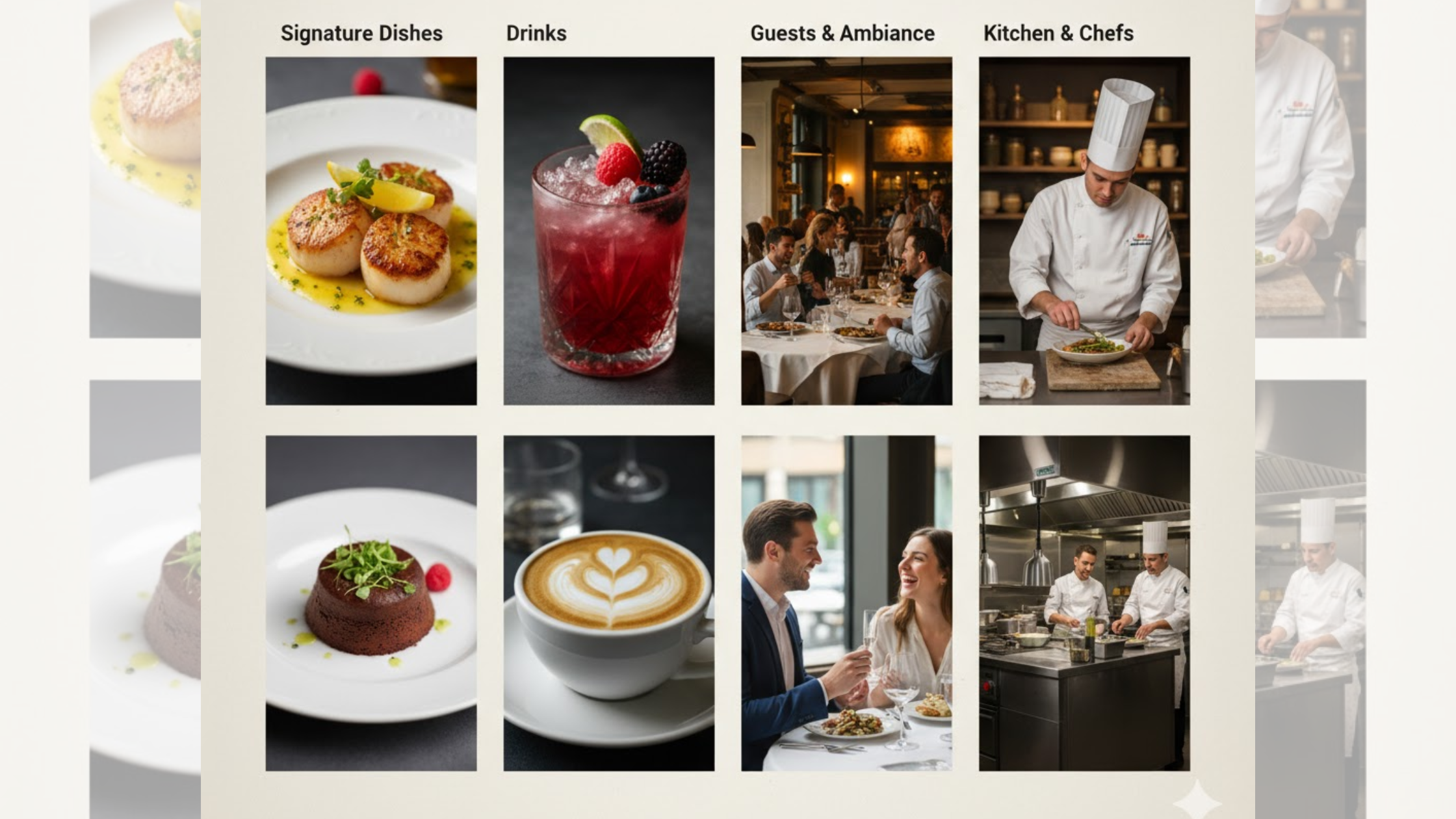
For those who own a restaurant, you might consider learning how to create a website for your business to expand your horizons.
This is because having a website is a big deal now with everyone searching for info from the internet prior to engangment.
Imagine a potential customer searching for “Italian restaurant near me” on their phone.
Do they find your spot easily, or do they instead find that competitor with a sleek, user-friendly website?
With over 60% of diners discovering new eateries through mobile searches, and online ordering accounting for nearly 40% of restaurant revenue in 2025, it gives you a good reason to create a website ASAP.

Another problem is traditional web design can be time-consuming, expensive, and require technical know-how that most busy restaurant owners simply don’t have.
Lucky enough, we have AI-powered websites restructuring the entire restaurant industry.
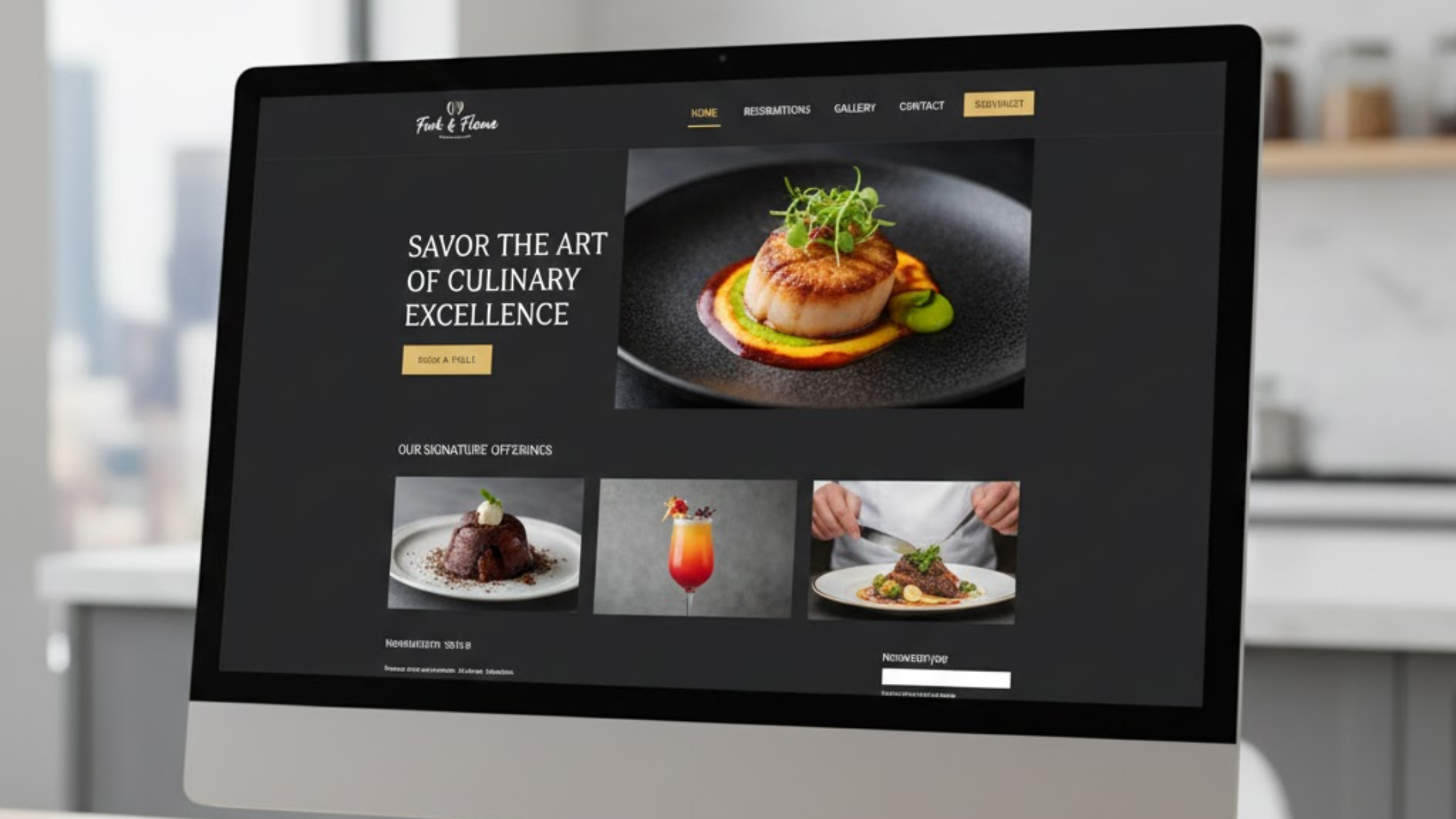
I mean, an AI can now create a whole restaurant website within minutes.
Isn’t that great especially for those of us who are not that techie?
And with things that simple, we only need to learn how to create a restaurant website using AI.
Now, this step-by-step guide is here to walk you through:
- Using AI to build a stunning, SEO-optimized site for your eatery.
- The who process from planning your vision to launching a live site in minutes.
- Tips to maximize value for your business.
Let’s get started already!
What is the Importance of a Restaurant Website?
Before we jump into the how to create a restaurant website process, let’s address the why.
In 2025, the restaurant landscape is more digital than ever.
According to recent industry reports, 85% of consumers check a restaurant’s website before visiting, and sites with online booking features see 25% more reservations.
Without a strong online hub, you’re missing out on foot traffic, takeout sales, and that all-important word-of-mouth buzz.
On the other side, a well-crafted restaurant website serves as your 24/7 hostess.
It welcomes guests with high-res photos of your signature dishes, shares your story to build emotional connections, and streamlines services like table bookings or menu browsing.
For small to mid-sized restaurants, this means competing with giants in the field, and your site can handle direct orders and payments without a glitch.
And we have a bonus.
AI tools now automate design, content generation, and even SEO, letting you focus on crafting unforgettable meals.
In short, you just need to start mastering how to create a restaurant website with AI, since it could be your ticket to thriving in a post-pandemic world where diners crave convenience and connection.
Choosing the Right AI Tool for Your Restaurant Website
For the restaurant industry where you need specific features like dynamic menus, reservation widgets, and photo galleries that pop, it needs an AI made just for that.
So, picking the right tool is super important.
Let’s compare some of the top options.
Quick Comparison of AI Builders
| Tool | Best For | Pricing (Starting) | Restaurant-Specific Features | Ease of Use | Drawbacks |
| Olitt AI | Restaurants & Hospitality | Free; $6.99/mo | Menu integration, reservation booking, AI-generated testimonials, local SEO tools | Extremely high (AI prompt-based) | Limited advanced e-commerce (but great for takeout) |
| Wix ADI | General Businesses | $16/mo | Basic menus, photo sliders | High | Generic templates; less AI depth for content |
| Hostinger AI | Budget Sites | $2.99/mo | Simple ordering forms | Medium | Fewer industry templates; manual tweaks needed |
| Durable AI | Quick Launches | $12/mo | Basic reviews integration | High | Limited customization; not mobile-optimized out-of-box |
Olitt AI shines because it’s built for niches like restaurants.
Its AI doesn’t just slap together a template—it analyzes your inputs (like your menu specialties) to generate personalized content, layouts, and even SEO-friendly copy.
Pros include lightning-fast builds (under 5 minutes), free SSL, domain integration, and seamless ties to tools like Google Maps or Stripe for payments.
It’s also affordable, intuitive, and packed with restaurant must-haves.
Plus, with built-in analytics, you track what’s driving orders—pure value.
Cons? If you’re running a massive chain, you might need add-ons, but for 90% of restaurants, it’s perfect.
Other tools like Wix ADI are solid for general use but lack this level of industry-specific intelligence, often requiring manual adjustments that defeat the purpose of AI.
Hostinger is cheap, but its templates feel generic, and you’ll spend time adding restaurant essentials yourself.
Durable is fast but skimps on customization, which can make your site look cookie-cutter.
Step-by-Step Guide: How to Create a Restaurant Website With AI

Step 1: Planning Your Website
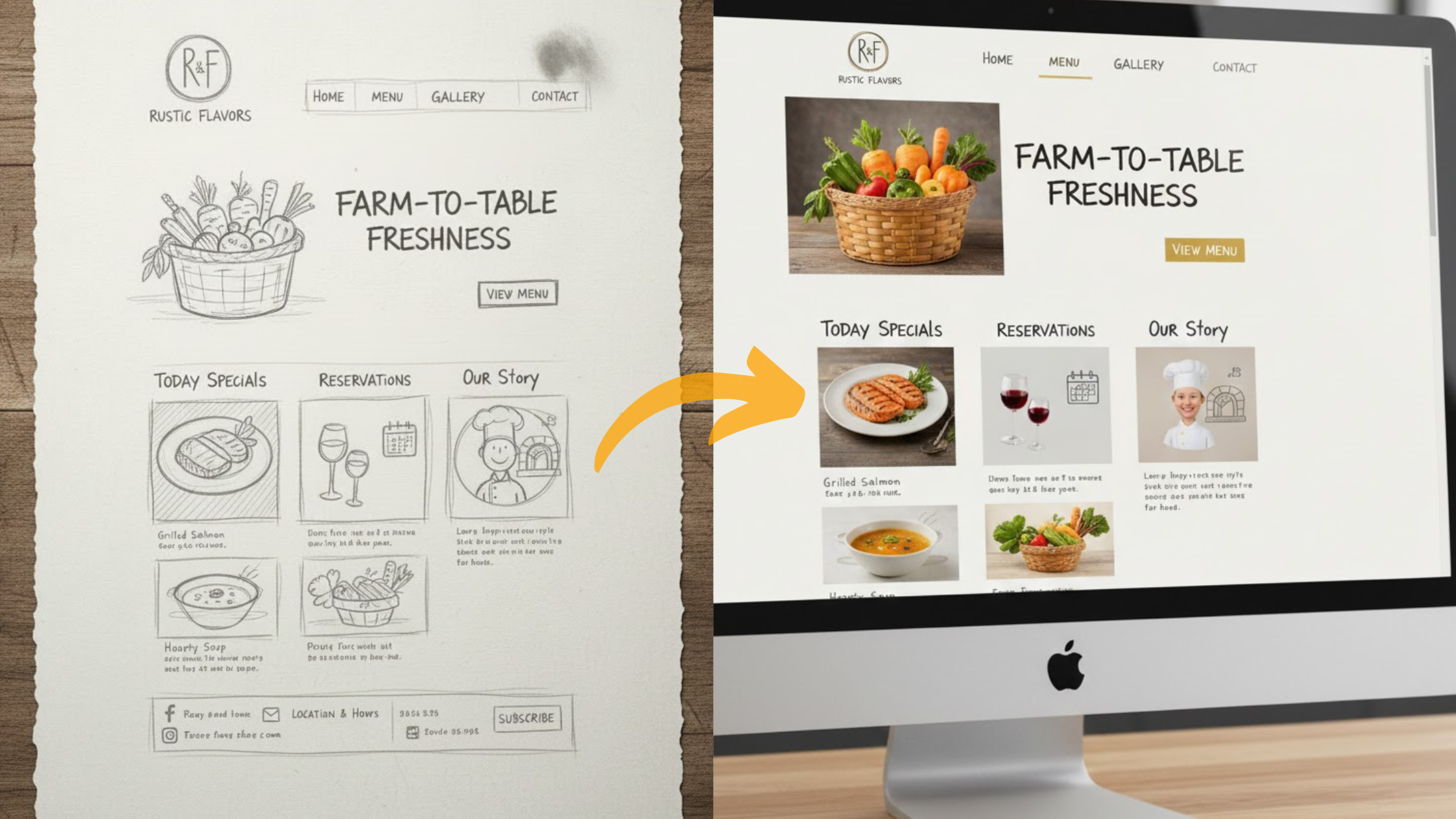
Before firing up any tool, sketch your vision.
This foundational step is crucial because it sets the direction for your entire site, ensuring it aligns with your business objectives and resonates with your audience.
Ask yourself key questions: What do I want visitors to do when they land on my site?
What do you want your website to look like?
What element do you want to include?
For EatOuts, the goals include showcasing the signature dishes to entice browsers, booking tables to secure reservations, and promoting takeout specials to boost off-peak sales.
All of these are targeted at young professionals aged 25-40 who value quick, innovative dining experiences.
Let’s break this down further:
Define Goals:
Start with primary and secondary objectives.
Primary might be driving reservations and takeouts, as that’s direct revenue.
Secondary could include increasing menu views to build appetite or encouraging newsletter sign-ups for marketing.
Why is this important?
Clear goals help prioritize features— for example, if reservations are key, you’ll want a prominent booking widget on the homepage.
Target Audience:
Understand who you’re serving.
For EatOuts, it’s urban millennials and families seeking quick, flavorful bites.
This influences everything from language (casual and fun) to visuals (vibrant, Instagram-worthy photos).
Research your audience: Use free tools like Google Analytics from your existing social pages or survey current customers.
Key Features:
List must-haves like an interactive menu (with zoomable images and allergen filters), Google Maps embed for easy directions, a contact form for inquiries, and perhaps a blog for sharing behind-the-scenes stories.
For restaurants, features like event calendars for specials or loyalty program sign-ups can turn one-time visitors into regulars.
Prioritize based on your goals: If takeout is big, integrate ordering buttons early.
Content Essentials:
Gather elements like an About page detailing your story (to humanize your brand), high-resolution images of dishes (professional photos convert better than stock), testimonials for social proof, and basic info like hours and location.
Pro tip: Collect content in advance—shoot photos during slow hours, write your story in a Google Doc.
This prep not only speeds up the AI process but ensures authenticity.
Common pitfalls here:
Skipping this step leads to generic sites that don’t convert.
Or overloading with ideas—focus on 5-7 core features to avoid overwhelming users.
Time investment: 15-30 minutes now saves hours later.
By planning thoroughly, you’re fueling Olitt’s AI for hyper-personalized results, transforming casual browsers into eager diners.
You can borrow ideas from other restaurant websites who are doing great.
Step 2: Signing Up and Getting Started with Olitt AI
Once your plan is solid, it’s time to get into the platform.
Head to Olitt.com and look for the prominent “Sign Up” button—usually in the top right corner.
Clicking it opens a simple form: Enter your email address, create a secure password (mix letters, numbers, and symbols for safety), and verify via the confirmation email that lands in your inbox.
This process takes just 2 minutes, and you’re in.
Upon logging in, you’ll greet Olitt’s intuitive dashboard, a clean, user-friendly interface designed with non-techies in mind.
It’s organized into sections like “My Websites” (for managing projects), “Domains” (for connecting custom URLs), “DNS Management”, “Emails”, and “Billing” for account tweaks.

Why does this matter for restaurant owners?
The dashboard is restaurant-friendly, offering one-click integrations for essentials like SEO tools, analytics, and even payment gateways— no need to hunt through menus.
Once you click on a website display image, it will take you to the editor page where you can make changes on your published site and preview your site on different screen sizes.
Click around to familiarize yourself.
Olitt stands out here because its interface prioritizes speed; unlike clunky builders, everything loads instantly, and tooltips explain features on hover.
For EatOuts, this means you can jump straight to building without a learning curve.
Step 3: Click “Create with AI” and Input Your Details
With the dashboard open, locate and hit the bold “Create with AI” button on the upper right side.
This launches Olitt’s intelligent prompt system, a wizard-like interface where you input details to craft a custom site.

Think of it as conversing with an AI designer: The more specific you are, the better the output.
Using EatOuts as our example, here’s how to fill each field thoughtfully:
- Business Name: Enter “EatOuts Restaurant” exactly— this becomes your site’s title and influences SEO.
- Mission: Craft a concise statement like “Bringing bold fusion flavors to your table, one taco at a time.” This guides the AI in tone and content generation, ensuring your passion shines through.
- Story: Provide a narrative of the restaurant history. Depth here helps the AI weave engaging About pages, building emotional connections with visitors.
- Ideal Customers: Describe the people who are mostly interested in what you offer. This tailors language and features.
- Services Offered: Detail each to enable AI to create dedicated sections with optimized CTAs:
- Book a table: Specify “online reservations via integrated calendar” for easy booking.
- View menu: “Interactive with allergens and pricing” to aid decision-making.
- Order takeouts: “Seamless checkout” to reduce cart abandonment.
- Join newsletter: “For weekly specials” to nurture leads.
- Preferred Color: Specify your color and tone preferences. AI uses this for themes, evoking appetite and vibrancy.
- Visual Style: “Modern minimalist with bold food photography” This directs layout, ensuring visual appeal without clutter.
- Physical Address: “123 Flavor Street, Downtown, Anytown, USA 12345″—for maps and local SEO.
- Working Hours: “Mon-Fri 11 AM-10 PM; Sat-Sun 10 AM-11 PM”—displayed prominently to set expectations.
- Booking Styles: “Online reservation preferred, with click-to-call fallback”—balances tech with accessibility.
- Tagline: “Tacos That Travel the World”—punchy for headers.
- Signature Dishes: “Feature Korean BBQ Tacos and Mango Habanero Shrimp on the homepage carousel”—spotlights stars with images.
- Delivery/Pickup: “Both, integrated with local services like Uber Eats API”—expands reach.
- Customer Testimonials: Include real customer reviews and testimonials if you have them.
Step 4: Review the All-Done Page and Hit “Create My Website”
After submitting your details, Olitt swiftly generates an “All Done!” summary page—a comprehensive recap of your inputs.

This is your chance to double-check everything before the AI builds.
Scroll and read through to confirm.
At the bottom, the prominent “Create My Website” button glows invitingly.
Clicking it signals the AI to assemble your inputs into a fully cohesive site, pulling from its vast template library and optimization algorithms.
The AI cross-references your data for consistency, applies best practices like mobile responsiveness, and even suggests improvements based on restaurant trends.
Step 5: Choose Your Plan
With your site blueprint approved, select a plan that fits your needs. Olitt offers flexible tiers, scalable as your restaurant grows:
- Free: Basic site with Olitt subdomain (e.g., eatouts.olitt.site)—perfect for testing layouts and features without commitment. Includes core AI building but limits custom domains and advanced tools.
- Starter: $6.99/month or $19/year—unlocks custom domains, removes Olitt branding, and adds basic SEO. Ideal for new spots getting online quickly.
- Pro: $10.99/month or $49/year—expands with advanced SEO, unlimited pages, reservation plugins, and analytics dashboards. For EatOuts, this is spot-on, enabling tracking of booking trends and menu popularity.
- Business: $29.99/month or $199/year—top-tier with full e-commerce for online orders, priority support, and integrations like CRM tools. Suited for established eateries with high traffic.
Assess your goals—if reservations and analytics are key, go Pro.
Enter payment details securely via Stripe or PayPal, and provide billing address.
No long-term contracts; cancel anytime.
Pro tip: Start with monthly to test, then switch to annual for savings (up to 70% off).
This step is quick but strategic, ensuring you get value without overspending.
Benefits: Affordable entry compared to custom dev ($5k+), with upgrades as revenue grows from your new site.
Step 6: AI Builds Your Site—Update and Launch
Click “Create,” and watch Olitt’s AI spring into action.
In just 2-5 minutes, it constructs your site: A responsive design that adapts to phones and desktops, optimized images for fast loading, and pre-filled pages based on your inputs.

Once done creating, it automatically publishes it. Now you can open the published site to see if it fits your expectation.
If something is a miss, you can always edit it on the editor page. You access it by hoovering over the display pic of your new site, and clicking “Go to editor.”
For EatOuts, the homepage features your tagline boldly, a scrolling carousel of pasta dish, and intuitive CTAs like “Reserve” or “Order Pickp/Delivery.”
Now, refine with updates:
- Address/Payment: Verify in Settings > Integrations; link to Google Maps for accuracy and add payment gateways like Stripe for secure transactions.
- Custom Touches: Use the drag-and-drop editor to add elements—a video tour of your kitchen for engagement, an FAQ section answering “Do you have vegan options?” or custom widgets. Olitt’s interface is intuitive, with undo/redo for experimentation.
Once satisfied, click “Publish” to update changes.
Connect your custom domain (free transfer assistance available) and go live—your site is now accessible worldwide.
Test thoroughly on mobile: Ensure menus scroll smoothly, bookings confirm via email, and pages load quickly (under 3 seconds to retain 70% of users).
Deeper pro tips for using AI tools to create a restaurant website:
- Integrate Google Analytics: Track visitor behavior, like popular menu items, to inform inventory.
- Add schema markup: In Olitt’s SEO tools, enable rich snippets so your site shows stars and prices in search results, boosting clicks.
- A/B test CTAs: Try “Book Now” vs. “Reserve Your Spot” on duplicate pages to see what converts better—Olitt supports easy variants.
- Security checks: Confirm SSL certificate (free with Olitt) for trust badges.
- Performance optimization: Compress images via built-in tools to avoid slow loads, a top reason for bounces.
Potential issues: If integration fails (rare), Olitt’s support chat resolves quickly.
This step’s thrill? Seeing your plan materialize into a revenue-driver.
Celebrate: Your EatOuts site is live, ready to fill tables and orders!
Step 7: Testing, and Maintaining
Your site is built, but don’t launch blindly, test rigorously to ensure flawless performance.
Simulate user journeys: Book a table (check confirmation emails), order takeout (verify cart and payment flow), and browse on different devices.
Monitor load times (aim for under 3 seconds using tools like Google PageSpeed Insights) and fix any glitches, like broken links or misaligned images.
Once vetted, announce on social media, email lists, and in-store signage to drive initial traffic.
For EatOuts, post teaser photos with links to build buzz.
Maintenance is key for long-term success: Olitt handles auto-updates for SSL, security patches, and core features, but proactive care elevates your site.
Weekly tasks: Add fresh blog posts (use Olitt’s AI to generate drafts on topics like “Fusion Taco Recipes”), update menus for seasonal specials, and review analytics to spot trends.
More strategies:
- SEO monitoring: Track rankings for “fusion tacos Anytown” and adjust keywords.
- User feedback: Add a survey form to gather insights, refining based on real input.
- Backups: Olitt auto-backs up, but export occasionally for peace of mind.
- Scaling: As traffic grows, upgrade plans for more bandwidth.
- Common maintenance pitfalls: Neglecting updates leads to outdated info, eroding trust—set calendar reminders.
This ongoing effort keeps your site dynamic, adapting to industry shifts like new delivery trends.
With Olitt, maintenance is low-effort, high-reward, ensuring your restaurant website remains a powerful tool for growth.
Conclusion
You’ve now mastered how to create a restaurant website with AI using Olitt, from meticulous planning to a profit-driving launch.
Now, ditch dev headaches; embrace AI efficiency that amplifies your restaurant’s appeal and bottom line.
Don’t delay.
Create your Olitt AI site now and elevate your eatery.